Multi-Device Testing
This guide explains how to create automation flows that target multiple devices, allowing you to test interactions between devices or run different steps on different devices within the same flow.
Overview
Multi-device testing enables you to:
- Execute specific steps on specific devices
- Test cross-device interactions (e.g., messaging between two phones)
- Run parallel validations across different device configurations
- Create comprehensive end-to-end tests involving multiple users/devices
Prerequisites
Before using multi-device features, ensure you have:
- At least two Android devices connected via ADB
- All devices visible in the device management panel
- Each device properly configured and accessible
Setting Up Multi-Device Flows
Step 1: Connect Multiple Devices
- Connect your Android devices via USB or ADB wireless
- Verify all devices appear in the connected devices list
- Note each device's name/ID for reference
Step 2: Assign a Main Device to the Flow
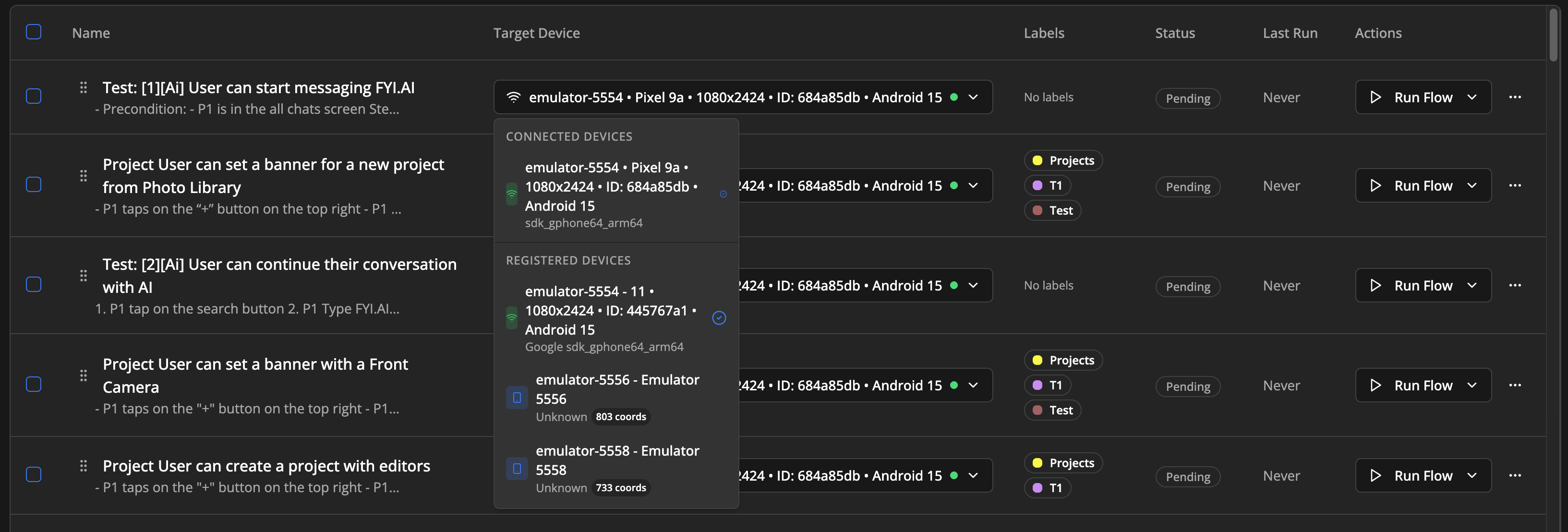
When creating or editing a flow:
- Navigate to the flow's settings
- Select the primary Target Device for the flow
- This becomes the "main device" that steps use by default
Step 3: Target Specific Devices Per Step
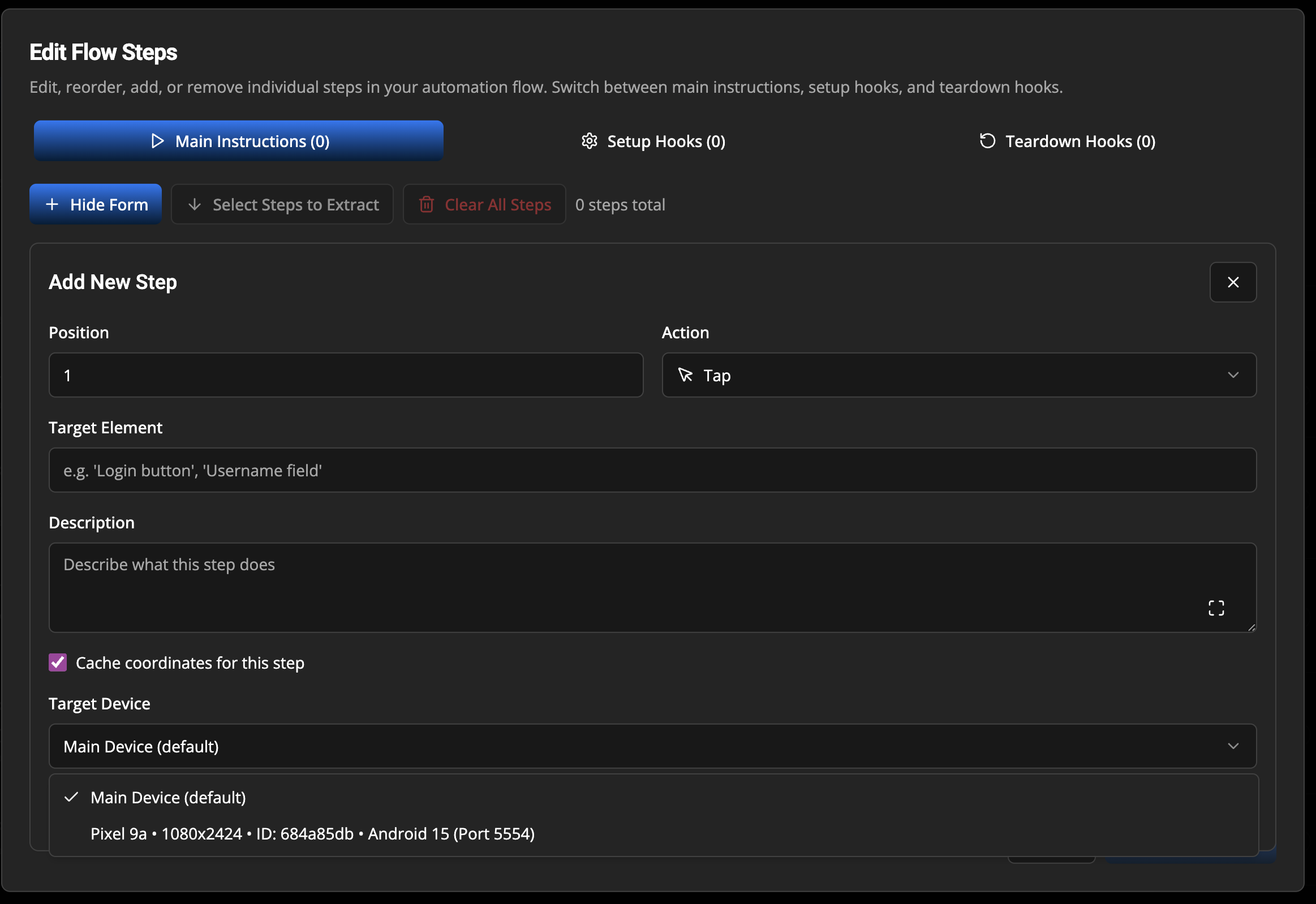
In the Flow Steps Editor, each step has a Target Device dropdown:
- Click Edit on any step
- Find the Target Device field
- Select from:
- Main Device (default) - Uses the flow's assigned device
- [Device Name] - Any specific connected device
Example: Two-Device Messaging Test
Here's how to set up a test flow that sends a message from Device 1 and verifies it on Device 2:
Flow Configuration
| Step | Action | Target Device | Description |
|---|---|---|---|
| 1 | Tap | Device 1 | Open messaging app |
| 2 | Tap | Device 1 | Select contact |
| 3 | Type | Device 1 | Type "Hello from Device 1" |
| 4 | Tap | Device 1 | Press send button |
| 5 | Wait | Device 2 | Wait 3 seconds for message |
| 6 | Verify Screen | Device 2 | Check message received |
Step-by-Step Setup
Steps 1-4 (Device 1 - Sender):
Step 1: Tap → Target: Device 1 → Element: "Messages" app icon
Step 2: Tap → Target: Device 1 → Element: Contact name
Step 3: Type → Target: Device 1 → Text: "Hello from Device 1"
Step 4: Tap → Target: Device 1 → Element: "Send" button
Steps 5-6 (Device 2 - Receiver):
Step 5: Wait → Target: Device 2 → Duration: 3 seconds
Step 6: Verify Screen → Target: Device 2 → Query: "Is the message 'Hello from Device 1' visible?"
Device Selection in Step Editor
When editing a step, you'll see the Target Device dropdown:
┌─────────────────────────────────────────────┐
│  Edit Step                                  │
├─────────────────────────────────────────────┤
│  Action:        [Tap           ▼]           │
│  Target Element: [Send button    ]          │
│                                             │
│  Target Device: [Device 1       ▼]          │
│                 ├─ Main Device (default)    │
│                 ├─ Device 1 (Pixel 7)       │
│                 └─ Device 2 (Samsung S23)   │
│                                             │
│  ☑ Cache coordinates for this step          │
└─────────────────────────────────────────────┘
Best Practices
Timing Considerations
- Add Wait steps between device switches to account for network/sync delays
- Use appropriate wait times when expecting cross-device interactions
Coordinate Caching
- Coordinate caches are device-specific
- Each device maintains its own cache for element positions
- When switching devices, cached coordinates from one device won't apply to another
Flow Organization
- Group related device actions together when possible
- Add comments or step descriptions indicating which device is targeted
- Consider creating subflows for device-specific action sequences
Advanced Use Cases
Parallel Device Verification
Test that the same app state appears correctly on multiple devices:
Step 1: Tap → Device 1 → Sync button
Step 2: Wait → Any → 5 seconds
Step 3: Verify Screen → Device 1 → "Is data synced?"
Step 4: Verify Screen → Device 2 → "Is data synced?"
Multi-User Scenarios
Test collaborative features with multiple simulated users:
Step 1: Type → Device 1 (User A) → "Meeting at 3pm"
Step 2: Tap → Device 1 (User A) → Share button
Step 3: Wait → Device 2 (User B) → 3 seconds
Step 4: Verify Screen → Device 2 (User B) → "Is 'Meeting at 3pm' visible?"
Step 5: Tap → Device 2 (User B) → Accept button
Step 6: Verify Screen → Device 1 (User A) → "Is acceptance confirmation shown?"
Cross-Platform Testing
If you have different Android versions or device types:
Step 1-5: Login flow → Device 1 (Android 13)
Step 6-10: Login flow → Device 2 (Android 14)
Step 11: Verify Screen → Device 1 → "Is home screen displayed?"
Step 12: Verify Screen → Device 2 → "Is home screen displayed?"
Troubleshooting
Device Not Appearing in Dropdown
- Verify the device is connected via
adb devices - Check that the device appears in the Connected Devices panel
- Restart ADB server if needed:
adb kill-server && adb start-server
Step Executes on Wrong Device
- Double-check the Target Device setting for that specific step
- Ensure you haven't left it as "Main Device (default)" accidentally
- Verify the correct device is selected, not just connected
Timing Issues Between Devices
- Increase wait durations between cross-device actions
- Network latency can cause sync delays
- Use Verify Screen steps to confirm state before proceeding
Coordinate Cache Conflicts
- Clear coordinate cache when switching device assignments
- Cached coordinates are device-resolution specific
- Different devices may need fresh coordinate discovery
Related Documentation
- Getting Started - Basic flow creation
- Supported Steps - All available step types
- Coordinate Cache - Cache management for faster execution
Previous: Supported Steps | Next: Coordinate Cache