Audio Management
The Audio Management interface provides a comprehensive solution for managing audio files used by the play_audio action in your automation flows. This page covers all aspects of audio file management, including upload, organization, and maintenance.
Overview
Audio Management allows you to:
- Upload audio files for use in automation flows
- Organize and manage your audio library
- Monitor storage usage and file statistics
- Download, rename, and delete audio files
- Validate audio file formats and sizes
Accessing Audio Management
To access the Audio Management interface:
- Navigate to the main application menu
- Select "Audio Management" from the available options
- The interface will display your current audio library and management tools
Interface Layout
Header Section
- Title: "Audio Management" with music icon
- Description: "Manage audio files used by the play_audio action"
- Action Buttons: Refresh and Upload Audio buttons
Statistics Dashboard
The interface displays three key statistics cards:
- Total Files: Number of audio files in your library
- Total Size: Combined size of all audio files (formatted display)
- Supported Formats: List of allowed file extensions
Audio Files List
A comprehensive table showing all uploaded audio files with:
- File name and icon
- File size, format, and last modified date
- Action buttons for download, rename, and delete
Supported Audio Formats
The system supports the following audio formats:
- MP3 (.mp3) - Most common audio format
- WAV (.wav) - Uncompressed audio quality
- M4A (.m4a) - Apple audio format
- AAC (.aac) - Advanced Audio Coding
- OGG (.ogg) - Open source audio format
- FLAC (.flac) - Lossless audio compression
File Specifications
- Maximum File Size: 50MB per file
- Validation: Automatic format and size validation during upload
- Storage Location: Server-side
audio/directory
Upload Audio Files
Upload Process
- Click "Upload Audio" button in the header
- Select File: Choose an audio file from your device
- Optional Custom Name: Enter a custom filename (or use original)
- Upload: Confirm upload to add to your library
Upload Validation
The system automatically validates:
- File Format: Must be one of the supported formats
- File Size: Cannot exceed 50MB limit
- File Integrity: Checks for corrupted or invalid files
Custom File Naming
- Optional: Leave blank to use original filename
- Required Extension: Must include valid file extension
- Special Characters: Avoid special characters that may cause issues
- Uniqueness: Duplicate filenames will be handled by the server
File Management Operations
Download Files
Purpose: Save a copy of audio files to your local device
Steps:
- Locate the file in the audio list
- Click the download button (↓ icon)
- File will be saved to your default download location
Use Cases:
- Backup important audio files
- Share audio files with team members
- Edit audio files externally
Rename Files
Purpose: Organize your audio library with descriptive names
Steps:
- Click the edit button (pencil icon) next to a file
- Enter the new filename with extension
- Confirm the rename operation
Best Practices:
- Use descriptive names (e.g., "notification-success.mp3")
- Include the file extension
- Avoid spaces and special characters
- Maintain consistent naming conventions
Delete Files
Purpose: Remove unused or outdated audio files
Steps:
- Click the delete button (trash icon) next to a file
- Confirm the deletion in the dialog
- File will be permanently removed
⚠️ Warning: Deletion is permanent and cannot be undone
- Ensure the file is not used in active flows
- Consider downloading a backup before deletion
- Update any flows that reference the deleted file
Storage Management
Monitoring Storage Usage
The statistics dashboard provides real-time information about:
- File Count: Total number of uploaded files
- Storage Usage: Combined size of all files
- Format Distribution: Types of audio files in your library
Storage Optimization Tips
- Regular Cleanup: Remove unused audio files periodically
- Format Optimization: Use compressed formats (MP3, M4A) for smaller file sizes
- File Organization: Group related files with consistent naming
- Backup Strategy: Download important files before deletion
Storage Limits
- Per File Limit: 50MB maximum
- Total Storage: Limited by server disk space
- Recommended Usage: Keep library size manageable for performance
Integration with Automation Flows
Using Audio in Flows
Audio files uploaded through the Audio Management interface are automatically available in:
- Flow Steps Editor: Appears in the audio file dropdown for
play_audiosteps - Flow Execution: Files are played during automation flow execution
- File Validation: System validates file existence before flow execution
Android Emulator Audio Setup
For testing audio playback with Android emulators, you may need to set up audio loopback to route system audio to the emulator's microphone input. This is particularly useful when testing flows that include audio playback and need to verify the audio is being played correctly.
macOS Setup with BlackHole
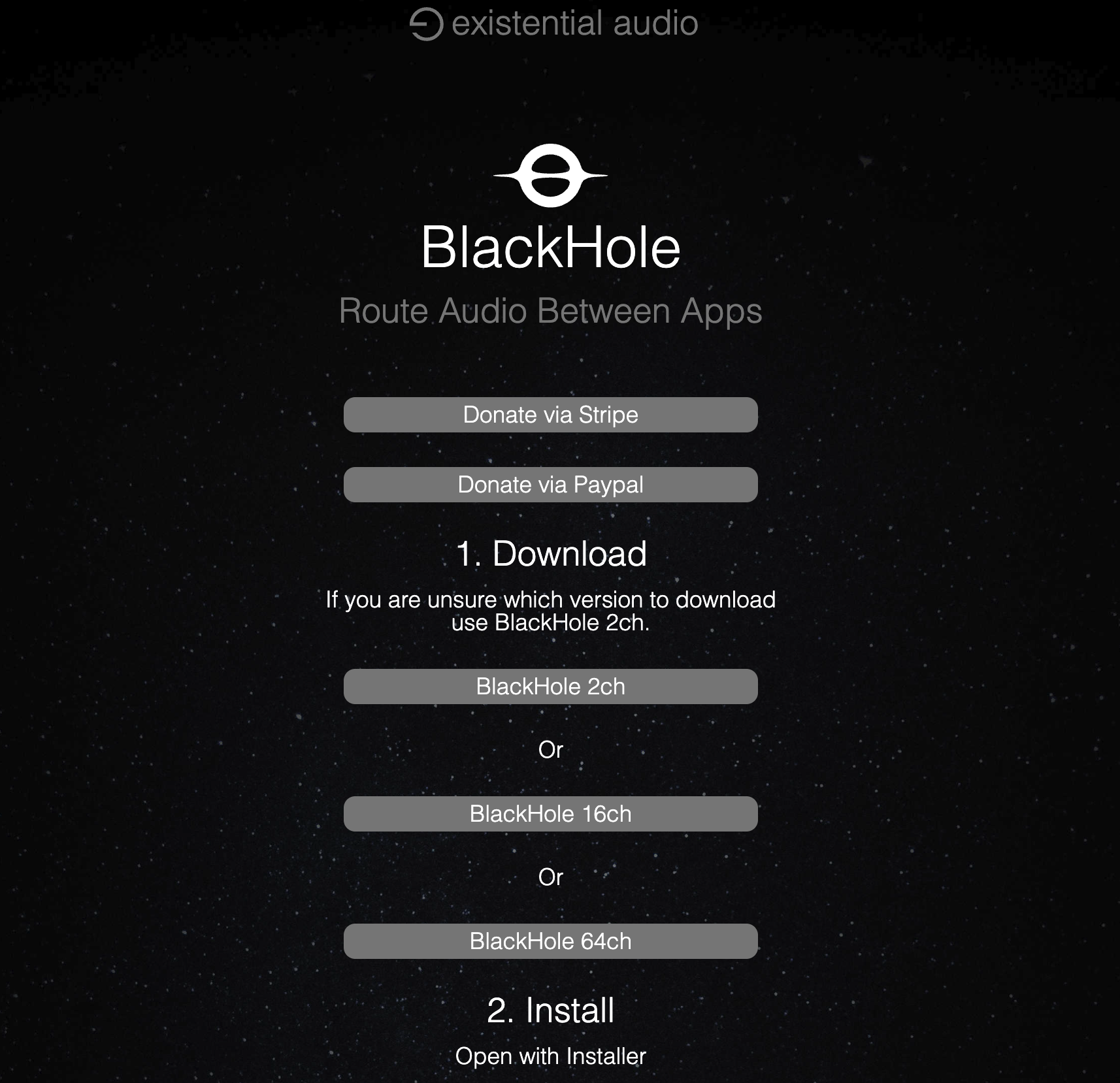
On macOS, we recommend using BlackHole, a virtual audio driver that allows you to route audio between applications:
BlackHole Audio Loopback Setup: https://existential.audio/blackhole/
Installation Steps:
-
Download and install (BlackHole 2ich) from the official website
-
Open Audio MIDI Setup (search for it in Spotlight with Cmd + Space).
-
Go to System Setting and select your input and output as Blackhole in your Mac
-
Go to android emulator and click on the 3 dots to open extended controls.
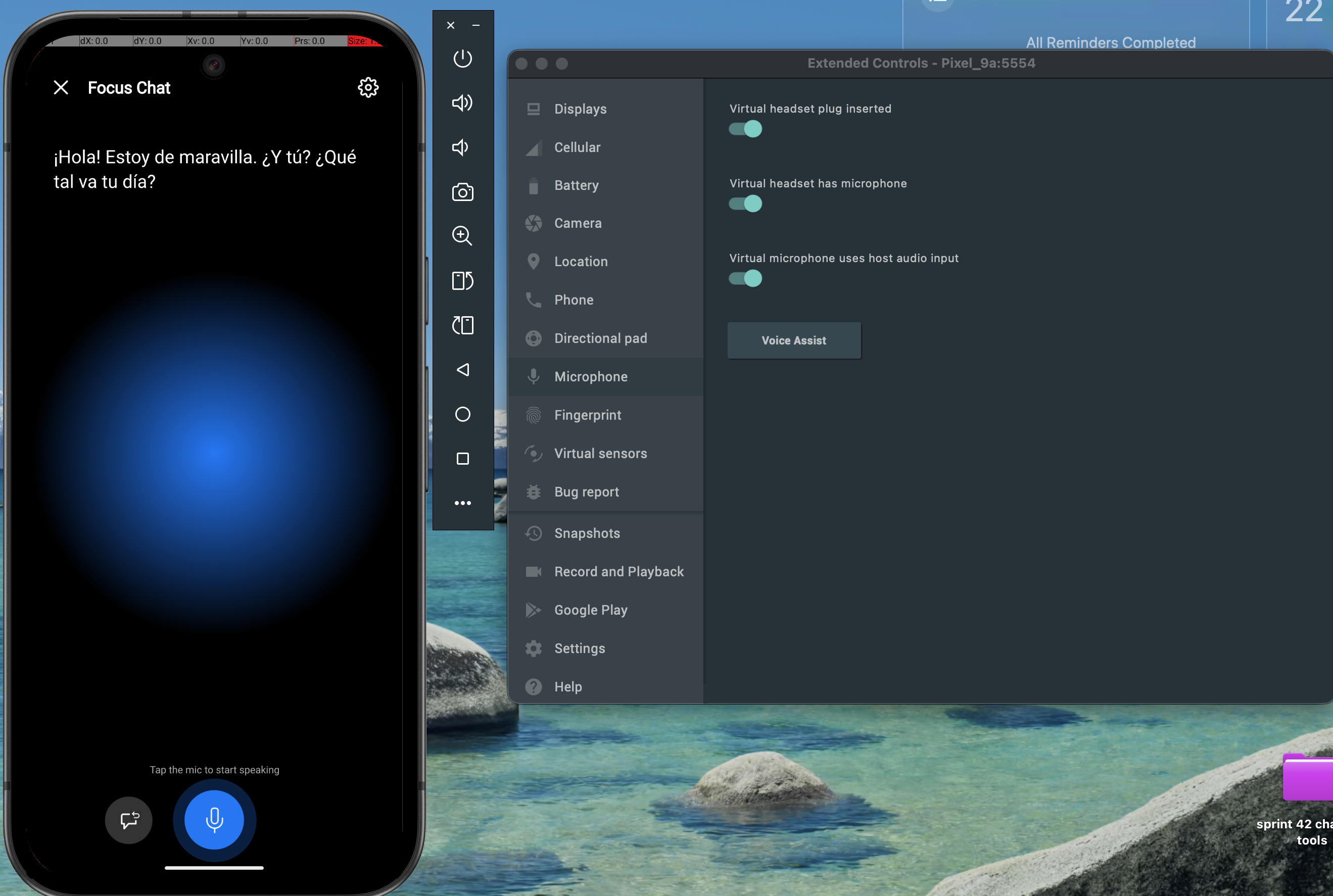
- In Extended Control MicroPhone toggle on everthing.
Benefits:
- Routes system audio to virtual input for emulator microphone
- Allows testing of audio-dependent automation flows
- Maintains audio output to speakers while routing to emulator
- Zero-latency audio loopback for accurate testing
Alternative Solutions:
- Windows: Use VB-CABLE or similar virtual audio cable software
- Linux: Use PulseAudio loopback modules
- Cross-platform: Consider JACK Audio Connection Kit
File References
When using audio files in flows:
- File Selection: Choose from dropdown of available files
- Default File: System defaults to "pasta.mp3" if no file specified
- Missing Files: Flows will fail if referenced audio files are deleted
Best Practices for Flow Integration
- File Naming: Use descriptive names for easy identification
- Version Control: Maintain consistent file versions
- Testing: Test audio playback in flows before deployment
- Documentation: Document audio file purposes in flow descriptions
Audio Testing Considerations
When testing flows that include audio playback:
Emulator Testing:
- Set up audio loopback using BlackHole (macOS) or equivalent
- Verify emulator microphone permissions are granted
- Test with different audio formats and file sizes
- Monitor system audio levels during playback
Device Testing:
- Ensure device volume is at appropriate level
- Test with both wired and wireless audio outputs
- Verify audio doesn't interfere with other flow steps
- Consider ambient noise in testing environment
Validation Strategies:
- Use
verify_screensteps after audio playback to confirm app responses - Test audio timing with
waitsteps for synchronization - Monitor device audio permissions and settings
- Log audio playback events for debugging
Troubleshooting
Common Upload Issues
File Format Not Supported
- Verify file extension matches supported formats
- Check file is not corrupted
- Try converting to a supported format
File Size Too Large
- Compress the audio file
- Use a more efficient format (MP3 instead of WAV)
- Split large audio files into smaller segments
Upload Fails
- Check internet connection
- Verify server storage space
- Try refreshing the page and uploading again
File Management Issues
Cannot Rename File
- Ensure new name includes valid extension
- Check for special characters
- Verify filename is not already in use
Cannot Delete File
- File may be in use by active flows
- Check file permissions
- Try refreshing the page
Playback Issues
Audio Not Playing in Flows
- Verify file exists in Audio Management
- Check file format is supported
- Test file download and playback locally
Poor Audio Quality
- Check original file quality
- Verify file was not corrupted during upload
- Consider re-uploading with higher quality settings
API Integration
Audio API Service
The Audio Management interface uses the AudioApiService for all operations:
Key Methods:
getAudioFiles()- Retrieve list of audio filesgetAudioStats()- Get storage statisticsuploadAudioFile()- Upload new audio filedownloadAudioFile()- Download existing filerenameAudioFile()- Rename existing filedeleteAudioFile()- Delete existing filevalidateAudioFile()- Validate file format and size
Error Handling
The system provides comprehensive error handling:
- Validation Errors: Clear messages for format/size issues
- Network Errors: Handling of connection problems
- Server Errors: Graceful handling of server-side issues
- User Feedback: Toast notifications for all operations
Security Considerations
File Security
- File Type Validation: Only audio files are accepted
- Size Limits: Prevents abuse through large file uploads
- File Scanning: Basic validation for corrupted files
- Access Control: Only authenticated users can manage files
Best Practices
- Regular Backups: Download important files regularly
- Access Control: Limit audio management to authorized users
- File Monitoring: Regularly review uploaded files
- Storage Monitoring: Monitor disk space usage
Performance Optimization
Upload Performance
- File Compression: Use compressed formats for faster uploads
- Batch Operations: Upload multiple files efficiently
- Progress Indicators: Visual feedback during uploads
- Error Recovery: Handle network interruptions gracefully
Previous: Supported Steps | Next: Coordinate Cache